--- title: "Register a Framework" description: "Register a Framework to define a reusable, parameterized calculation, such as a loan cash flow schedule, once." ---
TL;DR
A Framework is a reusable calculation with named inputs, written in Python. Open Product Framework → Frameworks, click + New Framework, set an Alias, add the Inputs it needs, write the Definition, and create. A Framework is versioned and goes through approval like a Model or Policy.
## What is it? A **Framework** is a reusable parameterized definition that Policies or Models can consume as input, so shared calculation logic is defined once. It lives in the **Product Framework** module alongside [Products](/user-guide/how-tos/register-a-product/). A Framework declares its **Inputs** (each with a name, an alias, and a type) and a Python **Definition** that computes a result from them. For example, a `Cash Flow Framework For 36 Months Installment Loans` takes a loan amount, an interest rate, a loan term, and arrays of monthly default and prepayment probabilities. Its definition returns the month-by-month schedule: beginning balance, ending balance, interest payment, principal payment, prepayment, and payment. Unlike a Product, a Framework is a governed object. It has a **version** and a **status** (it starts as **Draft**), an **Approvals** tab, and a place in the Product Framework [Approval Queue](/user-guide/how-tos/use-the-approval-queue/). It can also be shared; see [Share an Object](/user-guide/how-tos/share-an-object/). ## How to Register
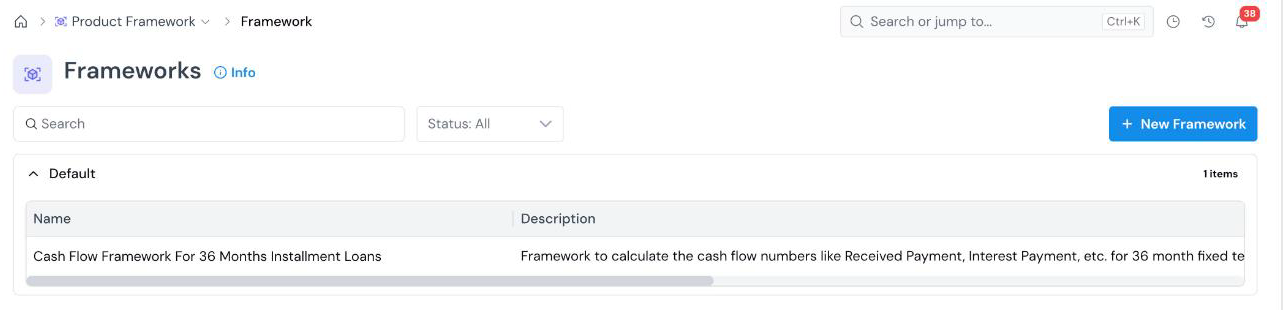
#### Open the Create Form On the **Product Framework → Frameworks** page, click **+ New Framework**. Frameworks registry page with a search box, a Status filter, one framework listed under the Default group, and the New Framework button. The registry lists frameworks by **Group**, with **Name**, **Description**, **Created Date**, **Created By**, and **Status** columns. Use the search box and the **Status** filter to narrow the list. The form opens with an editable name at the top left (**New Framework**). Click the pencil icon and type a descriptive name.
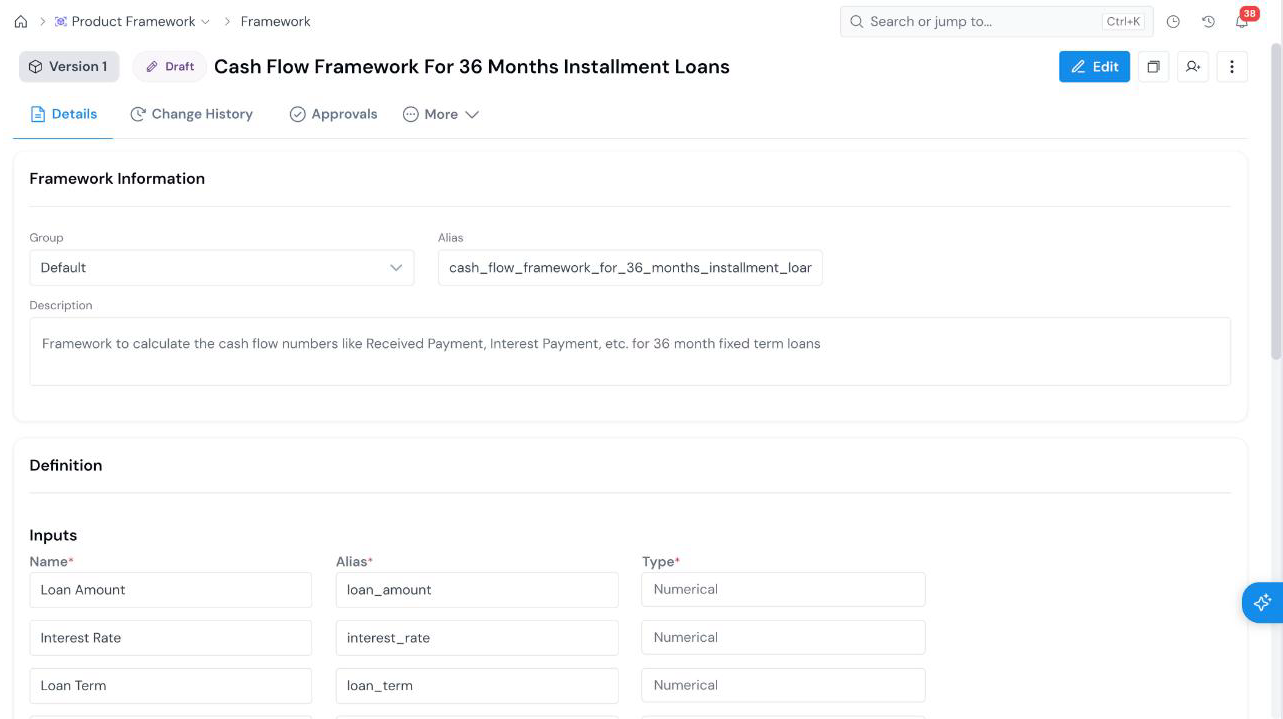
#### Fill in Framework Information
Field What it holds
Group Required The group the framework is filed under. See Organize Objects.
Alias Required The name used to refer to the framework in code (for example, cash_flow_framework). See Common Registration Info.
Description Required What the framework calculates. Type / for headings and lists, and @ to insert a link to another platform object.
#### Define the Inputs Under **Definition → Inputs**, click **Add Input** once for each value the calculation needs. Each input has three required fields:
Field What it holds
Name Required A readable label (for example, Loan Amount).
Alias Required The variable name the definition uses (for example, loan_amount).
Type Required The data type: Numerical, String, DateTime, Boolean, Array[..], Map[..,..], or Struct[..]. Use an array type for a value per period, such as Array[Numerical] for monthly probabilities.
#### Write the Definition In the **Definition** editor, write the calculation in Python. Each input is in scope under its alias. Return the result of the calculation. For example, a cash flow framework reads its inputs and returns one list per schedule column: ```python term = int(loan_term) if interest_rate is None or loan_amount is None or term is None: return { "beginning_balance": [], "ending_balance": [], "interest_payment": [], "principal_payment": [], } ```
#### Create Click **Create** at the bottom right. The Framework is saved as a draft, at **Version 1**, and you land on its details page. Framework details page showing the Version 1 and Draft badges, the Details, Change History, Approvals, and More tabs, Framework Information, and the Inputs table.
## The framework details page - **Details**: Framework Information and the Definition (inputs and code). - **Change History**: the record of edits. - **Approvals**: where you send the framework for review. See [Approve an Object](/user-guide/how-tos/approve-an-object/). - **More**: additional tabs for the object. ## What's Next - [Approve an Object](/user-guide/how-tos/approve-an-object/) to move the Framework from Draft to Approved. - [Register a Product](/user-guide/how-tos/register-a-product/) to define the product whose parameters feed the framework. - [Share an Object](/user-guide/how-tos/share-an-object/) to give a colleague access to a draft.