
User Guide
Register a Global Variable
Ask AI
Register a Global Variable so a Policy can assign a named, typed output in its action rules.
What is it?
Section titled “What is it?”A Global Variable (often shortened to GV) is a shared building block registered under Resources. Global Variables define the outputs a Policy assigns in an action rule.
For example, register a Numerical Global Variable with the alias approved_amount. A Policy rule can then assign it a value, and downstream blocks can read it. See Register a Policy Decision Workflow.
When an object depends on a Global Variable, a job on that object asks you to pick it as a dependency; see Run a Simulation.
Global Variables do not go through an approval workflow and cannot be shared with individual users; see Share an Object.
How to Register
Section titled “How to Register”
Open the Create Form
Section titled “Open the Create Form”
Open the Create Form
Section titled “Open the Create Form”On the Resources → Global Variables page, click + New Global Variable. Use the search box and the Type filter on this page to find existing variables.
The form opens with an editable name at the top left (New Global Variable). Click the pencil icon and type a descriptive name.
Set the Type and Alias
Section titled “Set the Type and Alias”
Set the Type and Alias
Section titled “Set the Type and Alias”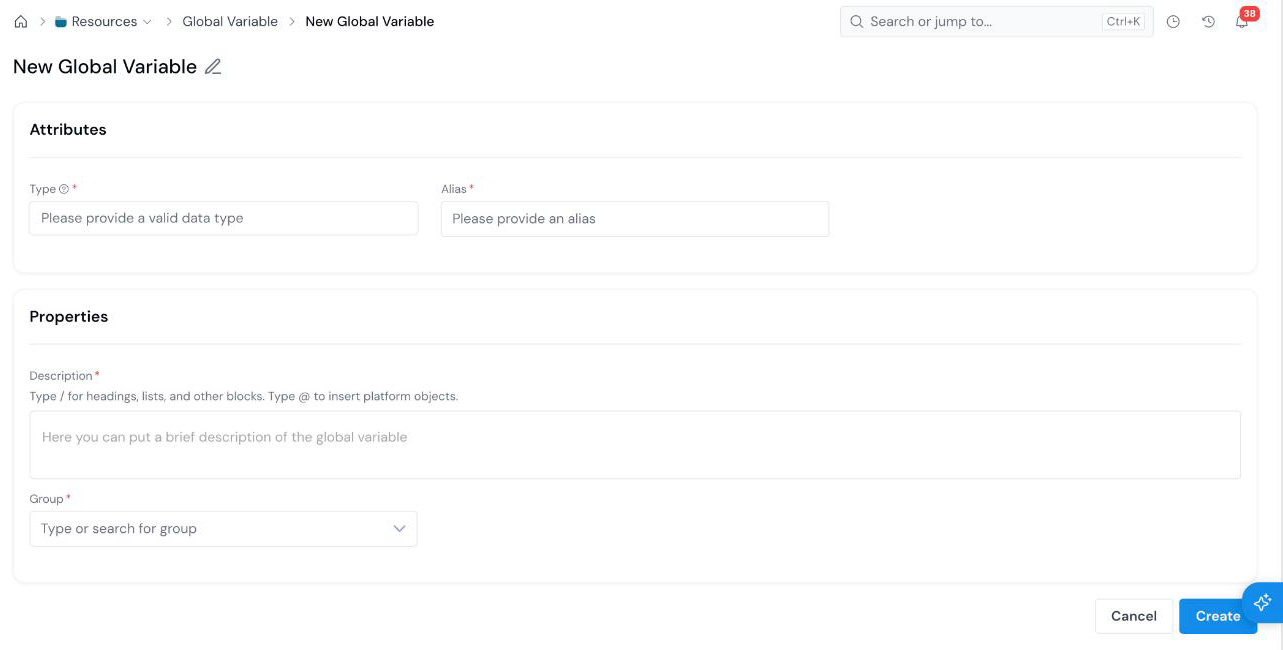
| Field | What it holds |
|---|---|
| Type Required | The data type of the value. Click the field to pick one: Numerical, String, DateTime, Boolean, Array[..], Map[..,..], or Struct[..]. |
| Alias Required | The name used to refer to the variable in rules and code (for example, approved_amount). See Common Registration Info. |
Fill in Properties and Create
Section titled “Fill in Properties and Create”
Fill in Properties and Create
Section titled “Fill in Properties and Create”Fill in the Properties: Description * and Group *. Then click Create at the bottom right.
What’s Next
Section titled “What’s Next”- Register a Runtime Parameter for a value you set each time a job runs.
- Register a Global Function to share Python logic across objects.
- Register a Policy Decision Workflow to assign the variable in a Policy.
Was this page helpful?
Thanks for the feedback.