

User Guide
Build a Model Dataset
Ask AI
Register a Dataset in Model Studio to assemble modeling data from the Data Elements and Features you already govern.
What is it?
Section titled “What is it?”A Dataset is a registered object type that combines Tables and Features for downstream use, such as training or scoring. You build it in Model Studio, using the data catalog you established in Data Vault and Feature Engineering.
Datasets are governed like Models. A Dataset has a status, goes through approval, appears in the Model Studio Approval Queue, and can be shared. It is also simulatable: you can run a job on it, and the default reports for the Dataset object type are set in Platform Settings.
Once registered, attach a Dataset to a Model as its development data (Train, Validation, and so on), so approvers can see what the Model was built on. See Register a Model Definition.
How to Register
Section titled “How to Register”
Open the Create Form
Section titled “Open the Create Form”
Open the Create Form
Section titled “Open the Create Form”On the Model Studio → Datasets page, click + New Dataset. Use the search box and the Status filter on this page to find existing datasets.
The form opens with an editable name at the top left (New Dataset). Click the pencil icon and type a descriptive name.
Set the Attributes
Section titled “Set the Attributes”
Set the Attributes
Section titled “Set the Attributes”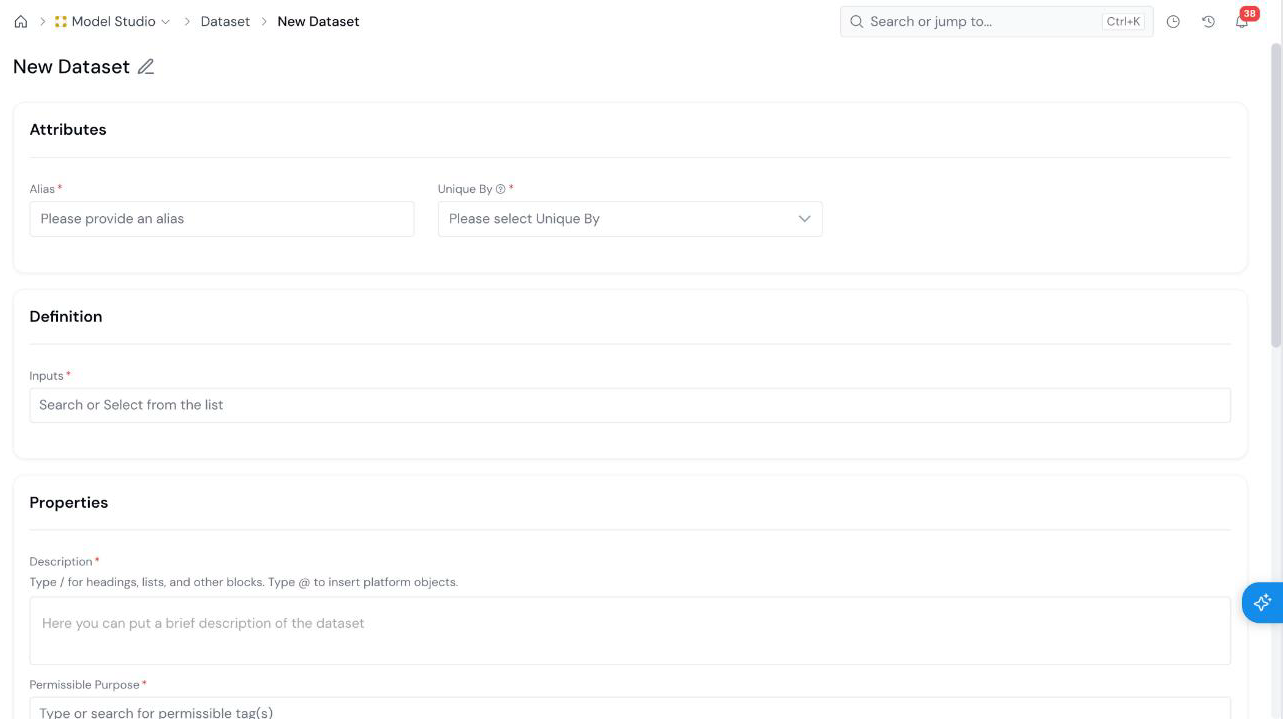
| Field | What it holds |
|---|---|
| Alias Required | The name used to refer to the Dataset in code. See Common Registration Info. |
| Unique By Required | The level each row of the Dataset is unique at. Pick from the list. |
Pick the Inputs
Section titled “Pick the Inputs”
Pick the Inputs
Section titled “Pick the Inputs”Under Definition, use Inputs * to search for and select the registered objects that make up the Dataset.
Fill in Properties and Create
Section titled “Fill in Properties and Create”
Fill in Properties and Create
Section titled “Fill in Properties and Create”Fill in the Properties:
| Field | What it holds |
|---|---|
| Description Required | What the Dataset contains and what it is for. |
| Permissible Purpose Required | The purposes the Dataset may be used for. |
| Group Required | The group the Dataset is filed under. |
| Keywords | Optional tags that make the Dataset easier to find. |
Click Create at the bottom right. The Dataset is saved as a draft.
What’s Next
Section titled “What’s Next”- Run a Simulation to run a job on the Dataset.
- Register a Model Definition and attach the Dataset as development data.
- Approve an Object to send the Dataset for review.
Was this page helpful?
Thanks for the feedback.