
User Guide
Navigate the Platform
Ask AI
Find your way around Corridor: the home page, its two views, the sidebar, and the shortcuts in the top bar.
The home page
Section titled “The home page”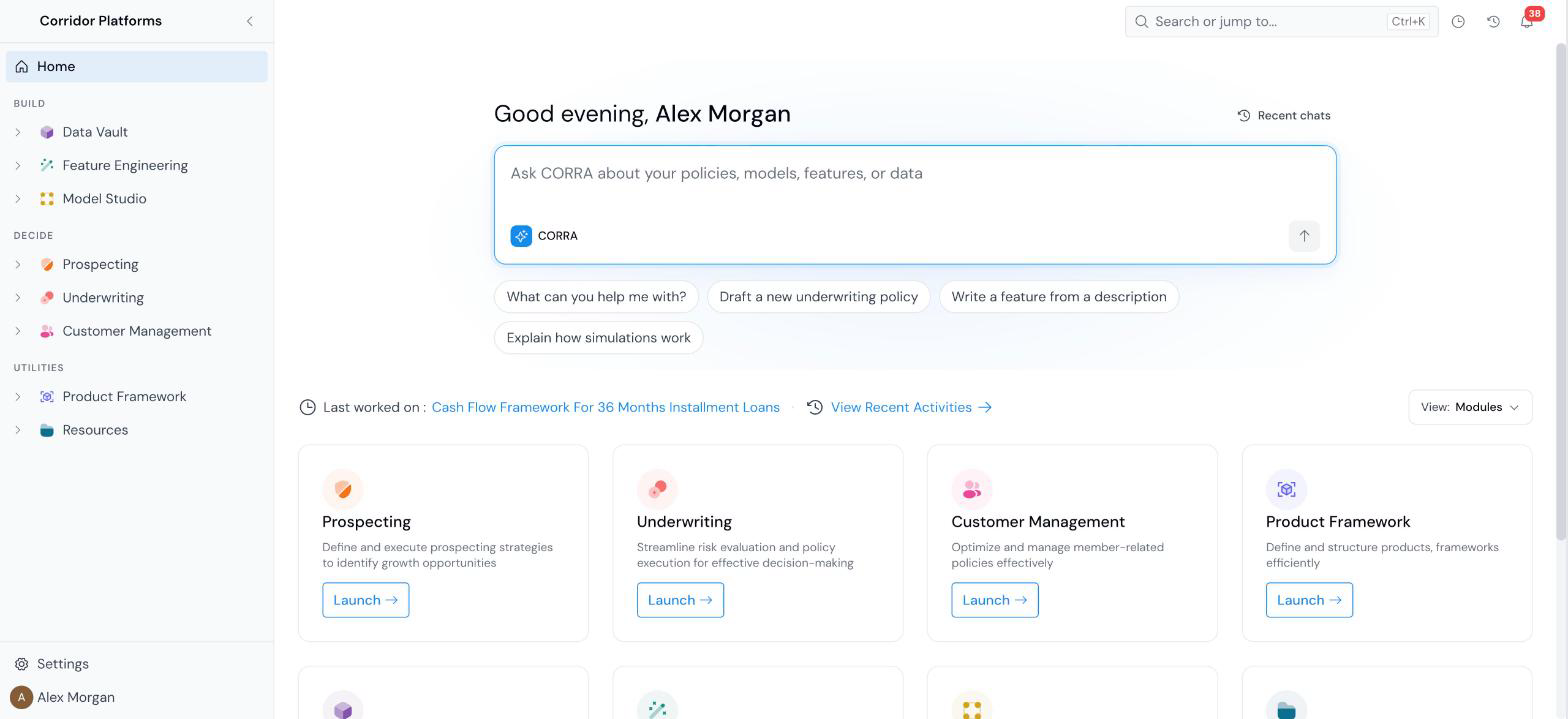
The home page greets you by name and puts CORRA, the platform’s AI assistant, at the top. Type a question into Ask CORRA about your policies, models, features, or data, or click one of the suggestions underneath (for example, Draft a new underwriting policy or Explain how simulations work). Recent chats reopens an earlier conversation. See CORRA AI.
Below the CORRA box, the View switcher at the right chooses what the rest of the page shows.
Modules view
Section titled “Modules view”One tile per module, each with a Launch button: Prospecting, Underwriting, Customer Management, Product Framework, Data Vault, Feature Engineering, Model Studio, and Resources. Above the tiles, Last worked on links to the object you touched most recently, and View Recent Activities opens the full list.
My work view
Section titled “My work view”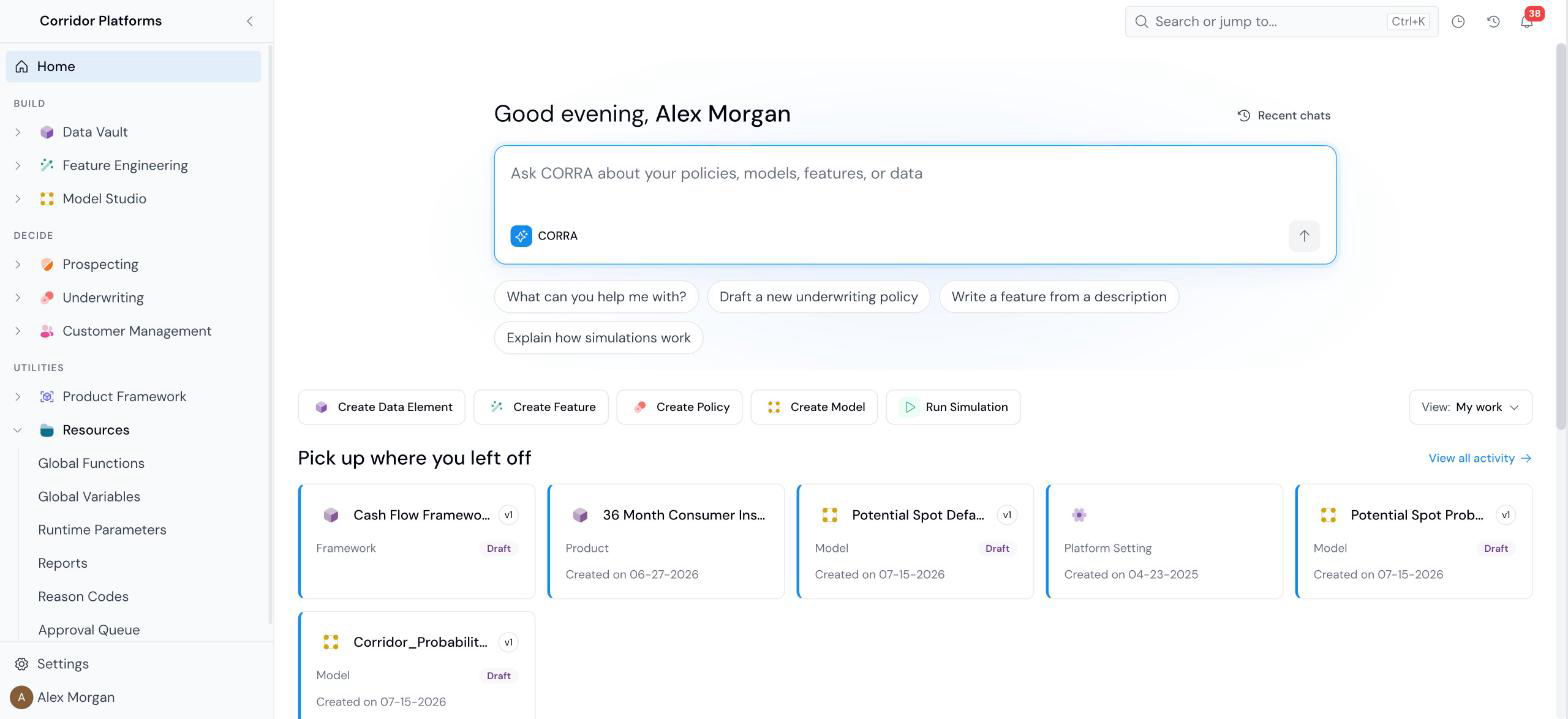
- Quick actions: Create Data Element, Create Feature, Create Policy, Create Model, and Run Simulation.
- Pick up where you left off: a card for each object you worked on recently, showing its type, version, status, and creation date. View all activity opens the full list.
- Approvals: approval requests waiting on you. When there are none, it reads You’re all caught up.
Choosing your default view
Section titled “Choosing your default view”Click View to open the switcher. It has two settings:
- Show me: switches the page between Modules and My work now.
- Open when I sign in: sets which view the home page opens on next time.
The left sidebar
Section titled “The left sidebar”The sidebar lists every module you have access to, in three groups:
| Group | Modules and pages |
|---|---|
| Build | Data Vault (Data Table, Quality Profile, Data Element), Feature Engineering (Feature), and Model Studio (Notebooks, Datasets, Model, Monitoring Dashboard). |
| Decide | Prospecting, Underwriting, and Customer Management. Each holds Policy, Portfolio Analysis, and Monitoring Dashboard. |
| Utilities | Product Framework (Product, Frameworks) and Resources (Global Functions, Global Variables, Runtime Parameters, Reports, Reason Codes). |
Every module also has an Approval Queue page; see Use the Approval Queue.
Click the arrow next to a module to expand it. Click the collapse control at the top of the sidebar to shrink it and give the page more room. Settings and your user name sit at the bottom.
Which modules and pages you see depends on your role; see Configure Roles and Permissions. Your organization can also relabel a module, so a name in your sidebar may differ from the one used in these docs.
The top bar
Section titled “The top bar”- Breadcrumb: shows where you are. The module name in the breadcrumb is a dropdown for moving within that module.
- Search or jump to: finds any registered object or page. Press Ctrl + K from anywhere. See Use Global Search.
- Job Summary (clock icon): shows the jobs that are currently Running, Queued, or Compiling, with the time of the last update. More Info shows more detail.
- Recent Activities (history icon): opens a panel with two tabs, Objects and Jobs, listing what you worked on most recently.
- Notifications (bell icon): shows a count of unread notifications.
Registry pages
Section titled “Registry pages”Every object type has a registry page with the same layout: a title (some with an Info link that explains the page), a search box, a Status or Type filter, and a + New button at the top right. Objects are listed by group. Click a row to open that object.
What’s Next
Section titled “What’s Next”- Use Global Search to jump straight to an object.
- CORRA AI to hand a task to the assistant.
- Platform Overview for what each module is for.
Was this page helpful?
Thanks for the feedback.